

Release Notes
This log provides an overview of the latest updates to SpeedAdmin Play!. Follow the development of the system with information about newly released features and ongoing improvements.
Please note: With new releases, minor issues may occasionally occur right after deployment. We continuously monitor the system and work to resolve any issues as quickly as possible. If you notice anything that isn’t working as expected, please contact Support.
New · May 2026: Artist names for our releases
Every SpeedAdmin Play! release will now be named after a legendary artist who left a lasting mark on music. It reflects what music and art schools are all about: people who pass something on and shape how the world is heard.

Release 08.10.26 Fitzgerald
This release lets schools design their invoices in Word, adds a Payer balances overview under Accounting, and makes it possible to remove lesson dates in bulk.
See a short video here introducing the changes in this release.
Release 22.09.26 - "Ellington"
FINANCE IMPROVEMENTS
This release includes several major improvements to fees and charging – from new ways of calculating prices to automatic fee assignment and easier day-to-day fee management.:
New ways to calculate charges
These are changes to the actual pricing logic:
New price type: fixed price per charge rate for school billing
SuperUser: When you create a fee with school billing in SpeedAdmin Play!, you can now choose Price per charge rate. The school is then charged a fixed amount for every charge rate that contains at least one lesson, no matter how many hours were taught. Hourly school billing works as before.
Access: Requires rights to fees and finance.
New price type: “Subscription” which also charges through periods without tuition
SuperUser: Student fees can now use the Subscription price type. It charges every charge rate from the day the student starts until the day they stop, including periods without lessons, for example the summer between two school years.
- If you choose Price per charge rate instead, periods without lessons are still skipped.
- If you discontinue the student mid-year, charging stops after the discontinue date.
Access: Requires rights to fees and finance.
Automatic assignment of rates based on rules
SuperUser: The new Automatic Fee Assignment functionality introduces a much more flexible fee structure. A single fee can now have multiple versions, each linked to defined rules and conditions. Based on these conditions, SpeedAdmin automatically assigns the correct fee version to the relevant student.
It is possible to define rules based on:
- Age – e.g. adult learner
- Date-based agreement (Documentation expiry)
- Days since fee start (both on tuition and instrument hire.
- Place of residence (based on postcodes)
- Recurring payment – e.g. Diret Debit
You can use this structure when setting up new fees. For schools that already have active fees, a new Merge Wizard makes it possible to merge existing fees into one fee with multiple versions, while keeping the relevant rules, billing periods and assignments in place.
Access: Requires rights to fees and finance
To better implement the above new functionalities, it is now possible to change a fees price type if no invoices have been posted for the charges related to the fee.
Alongside the new Automatic Fee Assignment functionality, we have also:
- reviewed the way charge rates are created on fees
- made it easier to carry fee setups into a new teaching period.
- see which students are affected by a specific fee version (three-dot menu)
Postcode overview
SuperUser: For each postcode, you can define whether it is inside or outside the municipality or primary area covered by the school. This information can then be used as a condition when creating rules for fee versions, making it possible to automatically apply different fees based on where a student lives.
Easier fee and payer administration
Change payer and fee functionality
SuperUser: It is now possible to change the payer or assigned fee from a specific charge rate period. This makes it easier to plan changes in advance, as they can be registered as soon as they are known and automatically take effect from the selected period.
Payers can see the charges they are billed for
SuperUser: Payers get a new Charges tab in their financial overview, listing every charge for the students and activities they pay for: student, description, period, amount and status. The tab appears whether or not the school handles payments in SpeedAdmin.
- Support can set how much the payer sees: invoiced only, which is the default, or calculated and invoiced.
- If the school handles payments outside SpeedAdmin, the tab shows charges and amounts only. Balance, payment status, payment history and receipts stay hidden, and the payer gets a message explaining that payment is handled in another system.
- Charges in a period that has not started yet are still hidden, so next school year is not revealed early.
Invoices, payments and balance work exactly as before.
Access: The setting requires SpeedAdmin Support. Feature activated by support (F_PAYER_CHARGES_OVERVIEW)
Change the fee on several instrument hires at once
SuperUser: Under Settings - Instruments there is a new grid where you can change the fee on students' current instrument hires. You can edit one row at a time or select several and change them together, and you can filter by payer type, instrument type and fee, or search by payer and fee name.
- Returned and sold instruments are not included in the grid.
- The affected payers' orders are recalculated automatically.
Access: Requires the P_INSTRUMENT_EDITINSTRUMENT right.
OTHER IMPROVEMENTS
Discontinue several students from a booking at once
SuperUser: On the Students tab of a booking you can now select several students and discontinue them together. You use the same dialogue as before, with date, de-registration reason, comment and notifications. The discontinuation is now also written to the booking's audit log, not only to the student's own.
- The buttons in the grids have been tidied up at the same time: Create sits next to the filter row, and actions that need selected rows stay together and move under More actions when there are many of them.
Access: Requires rights to manage bookings.
Upload several files to the media library at once
SuperUser / Teacher: You can now select or drag several files into the media library at once, and you can add several media items directly when you create a post or a comment. The upload shows how far you have got, for example 3 of 5, and you can move back and forth between the files and fill in the details before you save.
That helps when a whole folder of sheet music or recordings needs to go into the study plan.
Access: Available to users with access to StudyPlanner.
Create a booking on a holiday date straight from the schedule
SuperUser / Teacher: When you double-click a date in the schedule that is also marked as a holiday, you can now choose which type of booking to create. Previously nothing happened when you double-clicked a holiday.
- Booking types that cannot be used on that particular date are shown disabled with an explanation, and you get a message at the top if anything is unavailable.
Access: Available to users with access to the schedule.
One shared landing page for teachers and superusers
SuperUser / Teacher: Teachers and superusers now get one landing page instead of two with a switch between them. The page shows the buttons you have access to:
- Task dashboard: shown if you have the task dashboard right.
- Schedule: shown to everyone on the page.
- Attendance: shown if you teach.
- Community: shown if the school has StudyPlanner. Custom study planners are only shown to those who teach.
The landing page no longer requires a right of its own, so every teacher has it, and the switch between the teacher and superuser view has been removed.
Access: The superuser landing page right is now called ACCESS_TASK_DASHBOARD and controls only the Task dashboard button. The teacher landing page right has been removed.
Assessment levels on the student card
SuperUser: At UK schools you can now classify each assessment level, for example Grade 5 or Prep, into one of four attainment bands: Entry, Foundation, Intermediate and Advanced. You set this up under Settings, and the student card has a new tab where you record the pupil's level, course code and date.
- A level that is in use cannot be deleted. You are told how many pupils use it instead.
- Every change is written to the audit log.
Access: Requires access to statistics. Applies to UK schools.
Edit and delete comments written by someone else
SuperUser: Until now a comment could only be edited or deleted by the person who wrote it. If that person had left the school, or the comment came over when the school moved to Play, nobody could touch it. Schools can now grant the right Edit all notes, so a user can edit and delete comments written by someone else. You can always edit and delete your own, as before.
- An edited comment now shows who edited it and when, and it keeps its original date instead of jumping to the top of the list.
- Comments are now covered by the audit log. Creating, editing and deleting are all recorded, and the entries appear on the profile's own audit log.
Visibility is unchanged. Restricted comments and rights groups behave as before.
Access: Requires the Edit all notes right.
First name and surname in two columns
SuperUser: Students, Teachers, Guardians, Invoiced, Not invoiced and Yearly statement now show first name and surname in two separate columns instead of one combined name field, and the lists are always sorted alphabetically by surname.
- Under Settings the school chooses whether first name or surname comes first. The choice only changes the display, never the sort order and only applies to the lists mentioned
Access: The setting requires access to the school settings. If you have this right, you can change the order yourself under settings – user – name display
Timeframes on waiting list offerings and student time preferences
SuperUser: When you publish a waiting list offering (Course-Venue), you can now decide when the tuition may be scheduled. You have three options:
- No timeframe: no restriction, as today.
- Weekdays only: you pick weekdays without times.
- Weekdays and times: you pick intervals of 1 to 8 hours and a start time in steps of 15 minutes, and the student sees the time slots you created.
Students prioritise the published timeframes at checkout, and the order is the priority. Guardians can edit the preferences from the activity cards on the landing page, and you can see and filter on the preferences in the waiting lists and while scheduling.
Access: Requires the F_PUBLISH_WITH_TIMEFRAMES feature. Without it, publishing works as before.
New page for username setup
SuperUser: Under User management there is a new page, Username setup. For students, guardians, teachers and other staff it shows which rule the school uses to build usernames and how many users follow it. From the same page you can change the rule for a user type and correct the usernames that do not match.
- Before you run the correction you are told how many usernames will change and who has to be skipped.
- The affected users can be emailed their old and new username. The text is filled in for you.
- The username is now shown consistently on student, guardian and teacher profiles, and only to users allowed to see that person's personal details.
Anyone already signed in stays signed in, but their old username stops working at the next login.
Access: Requires rights to user management.
Find bookings whose lesson length no longer matches the course
SuperUser: Under Settings – Bookings there is a new page listing every booking whose lesson length or interval no longer matches the course it belongs to. Each row shows the course's expected length and interval next to the booking's own, and how many lessons are affected. You can move the booking to the correct course straight from the page, even when it has students on it.
- You can filter by booking type and by whether the booking is ongoing, and search on the course name.
- Fees that have not been invoiced yet pick up the new course's price. Periods that are already invoiced are left untouched.
- You get a warning if the new course has a different length or interval, and you cannot move a booking between an ongoing and a non-ongoing course.
Access: Requires the right to manage all bookings.
Choose which resources carry forward when you remove an end date
SuperUser: When you remove the end date on an ongoing booking and choose to generate the missing dates, you can now pick which resources from the last session carry forward. They are grouped into teachers, students and other resources, and are pre-selected. Previously every resource carried forward automatically, with no way to leave any out.
A booking that is not ongoing still shows only the confirmation text.
Access: Requires rights to manage bookings.
SEND medical information on the student card
SuperUser: At UK schools the student card has a new field, SEND medical information, for details about special educational needs and disabilities. The field is sensitive and is controlled by two new rights, one to read and one to edit. The read right can be given to superusers and teachers, the edit right to superusers only.
- The pupil and the guardian can see and edit the field on their own profile.
- The field can be added to the signup form, where it is hidden by default.
Access: Requires R_STUDENT_READ_SEND_MEDICAL_INFO to read and R_STUDENT_EDIT_SEND_MEDICAL_INFO to edit. Applies to UK schools.
Design and technical improvements
All users: We have fixed a number of smaller issues and improved things behind the scenes:
- Progress bar at recalculation of all orders.
- Row action buttons in the grids are right-aligned again.
- The list of orders and payments under Accounting loads without an error again.
- The time factor from the course and the booking type is now passed on to the teacher's bookings. Only bookings with lessons in the current teaching period are updated, so periods that have already been paid stay unchanged.
- We can now follow push notifications to the app all the way to the phone, which makes it quicker to answer why a message did not arrive. Nothing changes in the app itself.
- Our own monitoring and support tools have been rebuilt, and support can now pull the list of students behind a school's annual student fee themselves.
Student registration for school provision courses
SuperUser: It is now possible to mark a course area within School Provision as available for student registration.
When this option is enabled, courses or offerings based on that course area can be published in the course catalogue, allowing students to register directly.
Access: The setting requires access to the school settings.
SpeedAdmin Play! App for iOS and Android v. 1.0.40
This release expands what can be handled directly in the SpeedAdmin Play! App. StudyPlanner is now available in the app for both teachers and parent/student, attendance handling has been improved for teachers, and a number of changes make navigation, performance and everyday use smoother.
We have also made a short app video introducing the changes in this release.
StudyPlanner is now available in the app
StudyPlanner has made its way into the SpeedAdmin Play! App, keeping teaching materials, communication and lesson activities together – also when working on the go.
Teachers can now:
- Access Booking StudyPlanners and Custom StudyPlanners directly from the app (StudyPlanner menu point)
- Work with StudyPlanner directly from the Schedule, on each booking:
- Create a StudyPlanner if one does not already exist
- Access StudyPlanner Notes
- Access StudyPlanner Posts, and create, edit and comment on posts
- Use the Media LIbrary under My Profile:
- Access both own and shared media
- Upload new media directly from device or capture it directly with the camera/video recorder on the device.
- Select Media from the Media Library or directly from device when creating or editing a StudyPlanner post.
Improved attendance handling
Marking attendance is now more reliable:
- Mark all students present only marks students who have not been given an attendance reason yet, and no longer overwrites existing reasons.
- Clear all now requires confirmation before attendance is cleared for the selected day.
We have also fixed an issue where parents could overwrite an attendance status already marked by a teacher. Teacher attendance registrations are now handled correctly and protected from being changed by parents.
Push notifications
Push notifications are now supported.
Notifications can be received both while the app is open and while it is running in the background, and they can take the user directly to the relevant area of the app.
In this first version, notifications are limited to StudyPlanner — new
and comments. More triggers will follow.
Better access to the full schedule
The schedule now loads dynamically in 5-month sections as you scroll, allowing the complete list of lessons to be accessed without limiting how far ahead or back you can view.
For bookings, the room/location is now shown directly on the lesson card, making important lesson information easier to find at a glance.
Faster and smoother app experience
Several improvements have been made behind the scenes to make the app feel faster and more responsive:
- Data in the bottom navigation tabs is now prefetched, reducing the number of loading indicators when moving around the app.
- Data fetching throughout the app has been moved to the new App API infrastructure, improving the technical foundation of the app.
- Issues where the keyboard could cover text input fields have been fixed across the app.
- Missing translations have been added across multiple screens.
Release 19.08.26 - "Debussy"
New Help & Support overview
SuperUser: When you click your name in the top right corner and select Support, a new overview now opens directly on the screen. It gives you quick access to:
- User guides
- Contact Support
- Open a ticket
- Release notes
Under your account you will also find information about your SMS usage, subscription and documents.
When you click on guides or tickets, you are automatically signed in with single sign-on. The first time you sign in, you will receive a verification email sent to the email address you are registered with in SpeedAdmin.
How: Happens automatically. No activation needed.
Payer cleanup tool on the Invoicing page
SuperUser: A new Payer cleanup button on the Invoicing page helps identify and resolve two common payer issues before invoicing. A badge shows the number of items that need attention.
- Adults without their own payer profile: For adult students with uninvoiced items, a separate payer profile can be created so that future items are assigned directly to that profile. Already invoiced items remain unchanged.
- Families with multiple payers: Families where uninvoiced items are assigned to different payers can be consolidated under one common payer. This is important for family discounts, which require the relevant students to share the same payer. The payer with the most assignments is suggested automatically but can be changed.
How: Requires the EDIT_STUDENT_PAYMENTS right.
All teachers available for waiting list assignments
SuperUser: When you assign a teacher to a waiting-list entry in Play, the dropdown now lists every teacher at the school. Teachers already linked to a Tuition Offer appear first, followed by a divider and then the remaining teachers. You no longer need to add an instrument to a teacher's profile before you can select them, which means newly hired teachers can be assigned straight away.
How: Available to users with rights to manage the waiting list.
Statistic students headcount shown in schedule popup
SuperUser / Teacher: Bookings with statistic students now show the total headcount directly in the schedule popup, below the list of named students. Previously, this information was only available on the Statistics tab of the edit-booking page.
How: Visible to users with access to the schedule.
Historical ad hoc bookings and attendance now visible on the student profile
SuperUser / Teacher: On the student profile card, a new Upcoming filter has been added to Other bookings. When selected, only future bookings are shown. When not selected, only past bookings are shown together with their attendance details. This makes it possible to review a student's ad hoc attendance history directly from the profile, without navigating to the attendance records separately.
How: Available to teachers and administrators with access to the student profile.
New exit icon in create wizards
SuperUser / Teacher: The X icon used to exit create wizards has been replaced with an arrow. Selecting it leaves the wizard and returns to the page it was opened from. If there are unsaved changes, a confirmation is shown before leaving.
The Back button within the wizard remains unchanged and is used to return to the previous step.
How: Applies to all users of the create wizards.
Manual Charge is now available to all schools
SuperUser: Manual Charge has completed development and testing and is now enabled for all schools by default. It is no longer behind a feature, so no activation is needed.
How: Available to users with finance rights.
Unmarking attendance in a group booking updates immediately
Teacher: In the mobile app, unmarking a single student inside a group booking now updates the list right away. Previously the change was saved, but the student kept showing their old status until you left the booking and opened it again.
How: Mobile app. Ships with the next app release.
Re-registration improvements
SuperUser: The re-registration flow has been reworked and now includes an overview of accepted spots, bulk actions, restrictions per year group, reminders, re-registration on behalf of a student by an administrator, and audit logging of changes.
How: Available to users with rights to manage registrations.
DBS columns on the teacher list and a new default start date on the student list (UK only)
SuperUser: For UK schools, the Teacher-per-venue grid on the school landing page now shows the teacher's DBS number and a DBS status badge. The status is Valid when the DBS update service due date is today or later, and Invalid when the date has passed or the teacher has no DBS record. Both columns are shown by default and can be switched on or off individually. This is done in Settings – DBS.
On the school landing page, the start-date filter on the student list now defaults to today instead of the start of the teaching period. Dates remain limited to the current teaching period.
How: Applies to all users. No action needed.
Fixes to the new SpeedAdmin Play! login
All users: Three problems in the new SpeedAdmin Play! login have been resolved. Sessions no longer break immediately after login for users who have also connected an AI client, logins are no longer dropped on the first page load, and the school selector now appears in the user's own language instead of untranslated text.
How: Applies to all users. No action needed.
Student contact information visible while planning
SuperUser: In Schedule, when planning assigned waiting-list students, the More info button on a waiting-list student now opens a clearer and more detailed student overview. The layout has been reorganised and aligned with the main Waiting List page, making relevant student and contact information easier to access without leaving the planning view.
How: Available to users who plan bookings into the timetable.
Edit and deactivate questions in de-registration requests
SuperUser: Existing questions for De-registration can now be edited and maintained over time. Questions can be updated, field types can be changed to other compatible field types, and outdated questions can be deactivated when they are no longer needed. Previously submitted answers are preserved, allowing you to adapt forms without losing historical data.
How: Available to users with rights to configure de-registration requests.
Simplified extra time settings and clearer booking defaults
SuperUser: Extra time settings have been simplified and made more consistent across bookings, Booking Types and Offerings.
- When adding or editing a teacher on a booking, Extra minutes and Extra time factor are now grouped under Add extra time, keeping the form simpler when extra time is not needed. Existing extra-time values remain visible when edit.
- Default values for Extra minutes and Extra time factor can now be set consistently on both Booking Types and Offerings.
- The create/edit view for Booking Types has been reorganised to clearly separate settings that apply to the Booking Type itself from Defaults for new bookings. Defaults are copied to newly created bookings, while existing bookings keep their current values.
How: Available when managing bookings, Booking Types and Offerings.
Account log outs added to the audit log
SuperUser: User account log out events are now recorded in the system log, providing a traceable record of when an account was logged out and the reason for the log out.
How: Available to users with access to the system audit log.
Design and technical improvements
Smaller adjustments to the interface. No action is needed for any of these.
- Status chips now use a solid colour fill and a pill shape, and no longer show a hover state, as they are not clickable.
- Chips use a full pill border radius so they are easier to tell apart from buttons.
- The application background colour has been changed to a neutral grey so that buttons and active states stand out more clearly.
- The waiting list prioritisation card has been redesigned to match the visual language of the activity cards.
- Buttons on the profile widget no longer wrap awkwardly, and the important-notes button now has a tooltip.
- Sorting and page size now behave consistently across all grids, each with a single defined default.
- The Settings page menu lists its sections correctly again, and a missing entry in the Finance group has been restored.
Release 13.07.26 - "Chopin"
Redesigned Rights page
SuperUser: The Rights page has been redesigned for a clearer overview. Rights are now organised by system area and describe where and how they are used, making it easier to find the rights needed for a given task.
How: Automatically enabled – no activation required.
Improved Waiting List Sorting and Filtering
SuperUser/ Teacher: We've enhanced the waiting list view to make it easier to review and manage entries. When sorting by the Course column, you can now also filter by Course Type. This groups related entries together, providing a clearer overview and helping you find and manage waiting list records more efficiently.
How: Automatically enabled – no activation required.
Merge students and parents
SuperUser: You can now merge duplicate Student and Parent/Guardian records to ensure each person is represented by a single record. When records are merged, relevant information is consolidated, making it easier to maintain accurate and organized data. This feature is available under Settings => Duplicate Records.
How: Automatically enabled – no activation required.
See when a payer has a recurring payment
SuperUser/ Teacher: A badge now shows when a payer is set up with a recurring payment (for example monthly direct debit), so you can spot it at a glance – for instance when adjusting an ensemble fee.
How: Automatically enabled if using Direct Debit (Stripe) – no activation required.
New "Drop in" sign-up method
SuperUser/ Parents: You can now advertise activities that participants can attend without registering in advance. Simply select "Drop in" as the signup method on a course catalogue offering. No registration, capacity management, or waiting list is required. In the public catalogue, these activities are clearly marked with a "Drop in" button, along with the time and location, making it easy for participants to join.
How: Requires activation of the feature (F_DROP_IN) by SpeedAdmin Support.
Return to the profile after "Login as"
SuperUser: When you end a "Login as" session, you now land back on the profile of the person you were just viewing instead of the landing page – so you can keep working without searching for them again.
How: Automatically enabled – no activation required.
Contact information in Planning Mode
SuperUser/ Teacher: In Schedule Planning Mode, the contact details of prepaid students are now displayed directly in the dialog window, giving you all the necessary information without having to leave the planning mode.
How: Automatically enabled – no activation required.
Teachers can manage a booking's waiting list without owning it
SuperUser/ Teacher: A new right lets teachers manage the waiting list of a booking they teach but don't own, and plan those students into the schedule. When it is the only extra action, it now appears directly in the schedule popover.
How: Requires the new right to be assigned in Manage rights – “Manage booking waiting list (not owner)”
Community tab on the SuperUserlanding page
SuperUser: SuperUsers can now access the Community tab directly from their landing page, alongside the existing Dashboard. This provides quicker access to community-related features and information from a central location.
How: Automatically enabled – no activation required.
Contact info on the login page
SuperUser / Teacher / Parents: A “Contact” button now appears on the login pages, visible to everyone even before they log in. It shows your school's own contact details (name, address, phone, email and website) and lists SpeedAdmin ApS separately as the technical platform provider, so it's clear who offers the tuition and who delivers the technology. Please make sure your school's contact details are up to date.
How: Automatically enabled – no activation required. Make sure your school's contact details are up to date:
Legacy: from Settings – System Settings
Play!: Set a Default school and update contact details
Double-click to create a booking in Room Overview
SuperUser/ Teacher: You can now create bookings directly from Room Overview by double-clicking in the schedule. The booking workflow mirrors the functionality available in the teacher timetable, allowing you to create any booking type and select the appropriate venue and room during the process.
How: Available to users with rights to create lessons/bookings.
The new debt chasing pipeline
SuperUser: The debt chasing pipeline has been completely reworked to provide greater control and transparency. Hold status is now tracked per invoice, and you can choose between manual or automatic escalation. You can also resume multiple cases at once, while every change is captured in an audit log that can be opened directly from each row.
Additional improvements include the ability to write off debt and add comments per invoice, making it easier to manage and track individual cases.
A guide covering the updated debt chasing workflow will be released soon.
How: Requires activation of the feature (F_DEBT_CHASING) by SpeedAdmin Support.
Waiting-list cleanup for past bookings
SuperUser/ Teacher: On the Waiting list page, entries that belong to bookings with no future timeslots can now be found and removed in bulk from a dedicated cleanup list, keeping your active waiting list accurate.
How: Requires the Edit waiting list right.
New Booking Offers Overview for SuperUsers
SuperUsers: You now have access to a dedicated overview of all Booking Offers. Based on a selected date range (deadline date), the overview displays all pending, accepted, declined, and expired booking offers in one place.
With the new bulk actions, you can quickly decline, end, or extend multiple booking offers at once, making it easier to manage offers, follow up on outstanding actions, and maintain a clear overview.
How: This feature requires the F_ALLOW_BOOKING_OFFER feature to be activated by Support.
Improved Settings Menu Organisation
SuperUser/ Teacher: We have reorganised the Settings menu to make it easier to find different setup options and configurations. The updated structure provides SuperUsers with a clearer overview and a more intuitive way to navigate and manage system settings.
How: Automatically enabled – no activation required.
UX improvements
SuperUser / Teacher / Parents: Several smaller improvements make everyday use clearer and more consistent:
- Consistent sort chips in Planning Mode — the active sort chips in the waiting list panel now match the unplanned bookings panel.
- Clearer close button on the global warning banner — the dismiss (X) now has its own hover effect, so it's clear it closes the banner.
- Tidier registration menu for students and guardians — Instrument Hire, Discount Application and similar items are grouped into a single Registration menu, so nothing overflows off-screen.
- Improved accessibility on the registration page — a correct heading structure improves navigation for screen readers and assistive technology (WCAG).
How: Automatically enabled – no activation required.
Release 15.06.26 - "Beethoven"
School Landing Page & Teacher per Venue
School Contacts: Schools that hand tuition over to a municipality or external provider now have a role of their own. A new School Contact user gets a dedicated landing page showing the activities at their related schools – a weekly schedule, tabs showing a list of students, teachers and instruments, a waiting-list section and an invoice/payments view – all scoped to the schools they are linked to, without needing full teacher access.
SuperUser: School Contacts can be created, linked to one or more schools and edited, and they can manage their own profile. Any change requests they raise can be reviewed by an administrator. A new Teacher Per Venue overview (Monday–Sunday) is also available for staff scheduling – both as a standalone view in Play! and embedded on the School Contact landing page.
How: Configure User Type on Settings -> Usertype. Create or assign existing School contacts from school profile.
Custom Fields gathered in one place
SuperUser: Custom field settings used to be spread across the individual profile pages (students, teachers, guardians, rooms, instruments and schools). They have now been gathered into a single, dedicated “Custom Fields” item in the main customer settings menu, giving administrators one consistent place to configure custom fields for every resource type. A direct link from Custom Fields to the Booking Types settings has also been added.
How: Automatically enabled. Access follows the existing “See settings” right.
Waiting-list positions are kept when an offer is declined
SuperUser / Guardian: When an “Accept booking offer” is sent, the system can remove the student’s other waiting-list entries for the same subject. Previously, if the offer was then declined or expired, those entries were not restored and the student lost their original positions. Now, if the guardian declines the offer or it expires, the student is placed back on the waiting list in exactly the same order as before – a fairer and more predictable experience.
How: Automatically enabled – no activation required.
Waiting List Improvements.
SuperUser: The waiting list overview has been improved to make it easier to work with larger lists. When sorting by Course, the list now sorts by course name and then by course type within the same course.
The waiting list overview in schedule also now displays the student’s full birthdate instead of only the birth year. This gives schools a clearer basis for assigning students to the correct age or level group.
How: Automatically enabled – no activation required.
Clear warning before a StudyPlanner is deleted
SuperUser / Teacher: When you delete a booking that has a StudyPlanner attached, the system now warns you clearly that the StudyPlanner and its content – such as materials and assignments – will also be deleted. This prevents teaching material from being lost by accident, even when no students are attached to the booking.
How: Automatically enabled – no activation required.
Search by invoice number
SuperUser: The Finance page now has a search field for invoice numbers on the “Invoiced” tab, so you can find a specific invoice instantly instead of scrolling through the list.
How: Automatically enabled – no activation required.
Control which booking types are published via the API
SuperUser: On the booking type settings it is now possible to control whether a booking type is published through the SpeedAdmin API, with the option to exclude specific bookings. This gives schools that use the API more precise control over what is made publicly available.
How: Automatically enabled – no activation required.
Linked Accounts – one shared login for student and guardian
SuperUser: It is now possible to link a student login to their guardian login, so both share a single user account. Once linked, student and guardian log in with the same credentials, and contact details (name, address, postcode, phone, mobile and email) are kept in sync automatically – no more duplicate data entry.
Under Settings → User → Linked account candidates, the system lists student–guardian pairs that match on CPR or name + date of birth. Click “Link” on a row to link a pair – the student's contact details are synced from the guardian record, and the pair moves to the Linked accounts tab. During checkout, accounts are linked automatically when the student's personal identification number matches the guardian's. If the guardian logs in via an identity provider (e.g. MitID), they are logged in as guardian.
How: Requires the right R_STUDENT_WRITE_PERSONAL_DETAILS. The settings page is only visible to teacher and administrator account types.
UX & design improvements
All users: A mix of accessibility enhancements aligned with WCAG and broader UX improvements across the platform, making it easier and more intuitive for everyone.
How: Automatically enabled – no activation required.
__________________________________________
In this release, we’ve also included a short video highlighting some of the latest updates. You can watch it here.
Release 11.05.26 - "Amy Winehouse"
Finance: Pro-rata fee calculation
SuperUsers: SuperUsers can now activate Pro-rata calculation for fees using the fee type Price per charge rate.
For each fee, it is possible to define after how many days within a charge rate period the pro-rata calculation should apply. If a student starts after this point, the system will suggest a reduced price based on the actual number of bookings within that charge rate period.
If the pro-rata charge is not handled immediately, or if the user does not have the required rights, it will appear under Task Overview → Pro-rata charges. The charge must be handled and approved before it can be invoiced.
How: The feature is activated automatically. The right Manage_Prorata is required to handle and approve pro-rata calculations and has been added to all SuperUsers.
StudyPlanner: Improved media viewer
Teacher / Students / Parents: Users viewing PDF files in StudyPlanner will now see an improved PDF viewer with better usability and easier document interaction.
For video and audio files, a new loop function has been added. Users can set an A and B point and loop that selected section of the file.
How: Available automatically.
Automatic deletion of audit logs
SuperUsers: It is now possible to define how long audit logs should be stored. Logs older than the configured retention period will be deleted automatically.
How: Requires setup in Settings → System logs → "Auto-delete settings". Once configured, the cleanup job runs automatically every day.
Publish pipeline: Filter for linked published courses
SuperUsers: SuperUser working with the Publish Pipeline can now use a new filter called Invitational Bookings.
The filter makes it possible to find courses that have been published through an invitation link. SuperUser can also filter by invitation name, making it easier to see which courses are linked to each invitation and what has been published through each link.
How: Available automatically.
Shorter validity period for password reset links
All Users: Password reset links generated through the login information email merge field are now valid for 60 minutes instead of 7 days. This improves security around password resets.
How: Applied automatically.
Date of Safeguarding Review on teacher profile
SuperUser: SuperUsers managing teacher information can now register a Date of Safeguarding Review on the DBS tab of the teacher profile.
How: Available automatically for users with access to the relevant teacher profile information.
Cancel end date of booking
SuperUsers: SuperUsers can now undo the end date of a booking series.
If a booking series has been ended, SuperUsers can cancel the end date and restore the booking for future timeslots, including the related students and teachers.
How: Available from the booking profile next to the option for cancelling the booking end date.
SuperUsers can trigger fee recalculation
SuperUser: SuperUsers can now start a recalculation of all charges in the database directly from the invoice page.
Only one recalculation job can be queued or running at a time. SuperUsers can choose to recalculate charges only for users with current activities, or include all users – which will also recalculate charges for upcoming and historic activities.
How: Requires the right CAN_TRIGGER_RECALCULATE_ORDER_JOB. The button is available on the invoice page for users with this right.
Security: Change password in SpeedAdmin Play!
All Users: Users can now change their password directly in SpeedAdmin Play! from their own profile. SuperUsers can also reset passwords in Play!, and password policy requirements are shown in the password change modal.
How: Available automatically. Password reset access depends on existing user rights.
Teacher profile: Skills & Training tabs
The Skills and Training pages from Legacy have now been migrated to Play! and are available as separate tabs on the teacher profile. The related settings pages have also been added to the Play! settings overview.
If a database has previously used Skills or Training in Legacy, the existing data will now be shown in Play!. To start using the functionality, schools need to create Skill and/or Training types under Settings → User. Once these types have been created, the tabs will appear on the teacher profiles. If no Skill or Training types have been created in Settings, the tabs will not be shown.
Skills and Training are a useful way to keep track of teacher abilities, qualifications and professional development.
How: Available automatically based on existing access rights. Users with access to settings can see the related settings pages, and access to the Teacher profile and the right to edit are required. It is not dependent on the old Legacy rights.
Organize Custom Fields in sections on profiles
SuperUser: Custom Fields, previously referred to as Resource Fields, can now be organized into sections on profiles.
Sections are created under Settings → User. After this, Custom Fields can be set up or edited from the profile overview via the three-dot menu: Set up Custom Fields for all students/guardians/teachers.
When creating or editing a Custom Field, it can now be assigned to a specific section. It is also possible to define read and write access for each Custom Field. This makes it easier to structure profile information and control who can view or edit specific Custom Fields.
How: Available automatically based on existing access rights. Users with access to profile cards and Settings can edit and set up.
Room overview access for other rights groups
Students / Parents: Other rights groups than SuperUser/teacher can now access the Room overview. This is mainly for cases where specific groups of students/parents need to see the overall room overview. No data on students or teachers in bookings will be displayed.
How: Users only have access if the right View-SAP-Room Overview is granted.
Image uploads and direct links (Play! API)
SuperUsers: The Play! API has been extended to support image uploads for ad-hoc bookings.
Images can now be added to ad-hoc bookings and displayed on external websites when the booking is retrieved through the API. The API also now supports direct linking to specific bookings and offering bases, making it easier to connect external website integrations directly to relevant content in SpeedAdmin Play!.
How: API documentation is available at https://api.speedadmin.dk.
Course Catalogue: Improved booking availability
The Course Catalogue now shows more accurate availability for courses with multiple upcoming lessons when direct booking. If some lessons have already taken place, or if the next upcoming lesson is fully booked, the system now checks the next valid lesson with available spots.
When a parent or student clicks Book, they are guided to the first upcoming lesson that still has room, instead of being sent to a past or fully booked lesson. The system also re-checks availability during checkout. If the selected spot is no longer available, the user will see a clear message before continuing.
How: Available automatically.
UX Improvements
All Users: We have updated several core UI components to improve readability, consistency, and usability across the interface.
What has changed
- Font changed from Helvetica to Open Sans
- Base font size increased from 12px to 14px
- Data table font size increased to 13px
- Primary teal color kept, with softer light and dark shades
- Teacher menu items regrouped for better space usage
- Mobile menu now opens as a 240px drawer
- Inactive tabs are now transparent
- Button groups now match the design of single buttons
- Switches have been enlarged for better usability
- Chips have received updated styling
- Calendar now handles consecutive events correctly
Who/What: All users will see a refreshed and more consistent interface. Teachers will also notice a cleaner menu structure. Read more here.
How: Available automatically. No setup or rights required.
Teacher: The menu options 'My students' and 'My colleagues' have been moved to 'Resources'. 'Media' has been moved to the profile menu – the teacher's name in the top right-hand corner.
Guardians: Guardians using SpeedAdmin Play! on mobile devices can now close the child profile modal more easily. A close "X" has been added to the modal.
SuperUsers – Global Warning: SuperUsers can now receive important information from SpeedAdmin directly in the system through a Global Warning banner. The banner is shown at the top of the screen when logged in as a SuperUser. It can be closed, but will appear again at the next login if the warning is still active.
Release 13.04.26
StudyPlanner Improvements
Students: Students can now attach media from their device to a comment on a post, making it easier to share files with teachers. Media attached in these comments is only visible to teachers.
SuperUser / Teacher: It is now possible to add new members after a Custom StudyPlanner has already been created. Previously, members could only be selected during creation.
How: Automatically enabled – no activation required.
Teacher Profile page
Teacher: Teachers now have their own profile page, which can be accessed from their name in the upper right corner. On this page, they can edit their own data and view notes that have been made visible to them.
How: Automatically enabled – no activation required.
Guardian Landing page – Contact information
Parents/ Students: A new Contact module has been added to the landing page, where guardians and students can view contact information for related teachers as well as the school’s contactinformation.
SuperUsers: SuperUser are able to mark one school as the “Default school”. Name and Contact information from this school will then be shared on the parents view.
How: Automatically enabled –no activation required.
If schools want teachers’ phone/mobile numbers and email addresses to also be shown in the contact module, SuperUsers must assign the specific right to parents and students: View – SAP – teacher personal details
Teacher Pay Calculation
SuperUser: SuperUsers can now run pay calculations using the system’s Pay Period configuration, helping ensure correct payment for teachers paid by the hour.
By setting up Pay Periods, Pay Grades, and Activity Types, it is possible to create a flexible calculation model that turns booking and hour data into actual pay. Pay periods can be locked and exported as the basis for teacher payroll. Differences can be reviewed and carried forward to the next period, either as deductions or additions. It is also possible to make custom adjustments for each teacher within a pay period.
Teachers: Teachers can independently access their own pay calculations for each Pay Period from their user dashboard.
How: Needs feature activated by Support (F_MANAGE_SALARY_TYPE + F_SALARY_HOURCALCULATION)
Assign Rights to SuperUsers: Edit- Salary configuration
Assign Right to Teachers: View - Salary Calculation
Search filter on Settings
SuperUser: A new search function has been added to Settings, making it easier and faster to find a specific setting. The search respects rights and features settings.
How: Automatically enabled – no activation required.
Remember Device and MyDeviceOverview – SpeedAdmin MFA
All: IF SpeedAdmin MFA is being used on your database - Users can now choose to remember a device at login, so they do not need to verify themselves again each time they log in until the device token expires. Users can also view and remove their trusted devices from their profile. In addition, new MFA settings have been added to manage this functionality.
How: Requires MFA setup.
Anonymize Students & Guardians
SuperUser: It is now possible to anonymize students and guardians in SpeedAdmin Play!, helping ensure safer handling of personal data and GDPR compliance. Anonymization can be done directly from the profile via the three-dot menu in the top right corner. Profiles with active courses, active waiting lists, instrument hire or an outstanding balance cannot be anonymized.
Profiles can also be marked as “Prevent Anonymization”, which excludes them from automatic anonymization.
Automatic anonymization is configured under Settings → User → Anonymization, where you can define after how many inactive teaching periods a student should be anonymized. Profiles due for anonymization appear on a list 30 days in advance, where they can be reviewed and excluded if needed.
How: Automatically available on profiles for users with the required right (R_CAN_ANONYMIZE_USERS). Automatic anonymization is only enabled once a SuperUser has configured the number of inactive teaching periods in Settings.
New Waitling List Status added
SuperUser: The waiting list now includes a new status, “On hold.” This helps superusers manage students who signed up as “New” but are already being processed and have not yet been assigned to a teacher. Marking a student as “On hold” removes them from the “New” overview on the SuperUser start page. The status canbe updated individually or in bulk.
How: Automatically enabled – no activation required. Rights needed to see waiting list.
Attendance overview
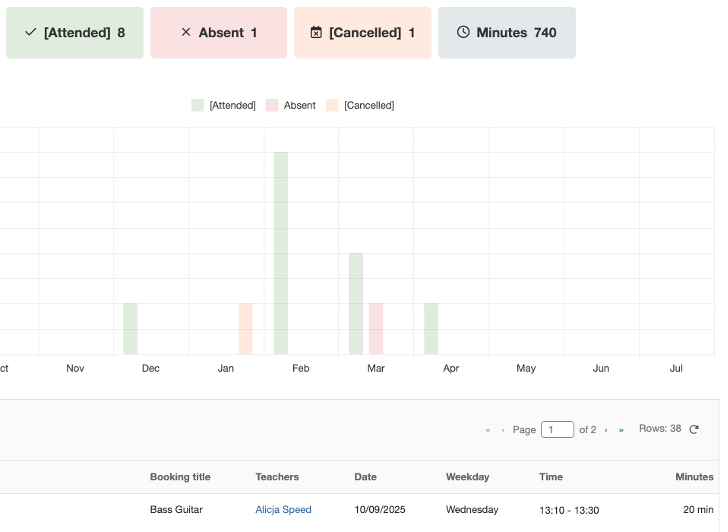
SuperUsers / Teachers: The attendance list now includes a statistical overview of each student’s attendance across the entire teaching period, shown as a percentage per student in each booking. The percentage is based on the number of lessons marked and how many of those were marked as Attended. For example, if only Attended has been marked, the student will show 100% attendance. If 3 lessons are marked as attended and 1 as missed, the attendance rate will be 75%.
The attendance page also shows how many students in a booking have been marked, for example 3/3.
When opening the attendance overview, a modal now displays all lessons in the teaching period and their status, followed by a monthly graphical overview and a full list of bookings.
Under Planning, SuperUsers can also access a new Attendance Overview Grid, where attendance across all students can be viewed, sorted and filtered by teacher, attendance percentage and consecutive absences.
Parents / Students: The lesson overview from the activity cards now opens the same modal with booking overview, monthly graphic and full booking list.
How: Automatically enabled - no activation required.
UX Improvements
SuperUser / Teacher / Parents: The display of persistent banners has been improved so that text and icon wrapping works better on smaller screens. At the same time, banners have been technically aligned to use one shared component, ensuring a more consistent display.
How: Automatically enabled – no activation required.
Release 16.03.26
Move / copy student
SuperUser: It is now possible to move or copy multiple students at once from one booking to another booking. This makes it easier to edit tuition bookings, reorganize groups or duplicate student allocations without having to handle each student individually.
How: Automatically enabled. In Edit booking, two new action buttons have been added — Move and Copy - allowing you to handle multiple students in one step.
Start and End Time on Schedule
SuperUser/Teacher: Teacher/SuperUser can now limit the visible hours in the schedule. For example, if a teacher normally starts lessons at 10:00, the schedule no longer needs to display earlier hours such as 08:00. This gives a clearer and more focused overview of the teaching day.
How: Automatically enabled. A new button has been added next to the Print Schedule button. Here users can define their preferred start and end time for the schedule display. The setting only affects the visual view of the schedule and can be adjusted at any time. Only bookings within this time range will be displayed by default.
Improved SuperSearch
SuperUser: Super Search has been improved. It is now possible to search for ensembles directly, and the instrument search has been corrected to ensure reliable results. Ensemble search will only be for booking type “Ensemble” and search on the Title of the booking.
How: Automatically enabled – no activation required
Active links in notes
SuperUser / Teacher / Parents: It is now possible to create active links in the Comments section of all profiles.
How: Automatically enabled – no activation required. An icon for creatinglinks is now visible in all comment boxes.
Release 16.02.26
New "Show Interest" sign-ups (mailing list in registration form)
Parents can now sign up to a mailing list directly in the registration form - without creating an account. This lets the school notify interested parents when new activities or available slots become available. (Also referred to as “Show interest”.)
How to enable
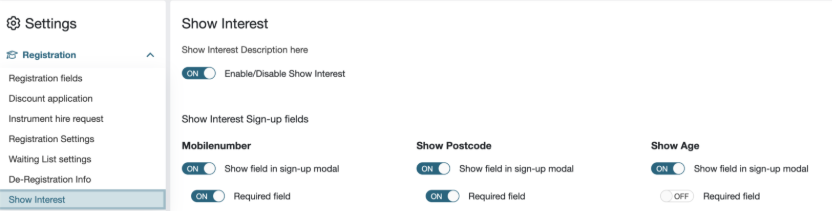
- Go to Settings → Registration → Show interest
- Turn on Show interest for the school
Configure fields - On the same settings page, you can choose which extra fields to ask for and whether they are required:
- Optional / configurable: Mobile number, Postcode, Age
- Always mandatory: Name, Email
Where it can be enabled
Base course level
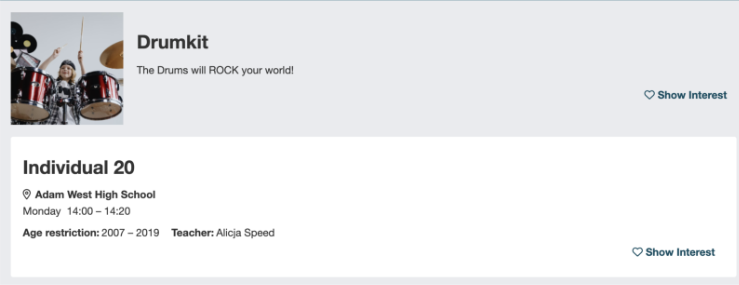
- Show interest can be enabled for a base course, allowing parents to show interest directly from the course catalogue
- Note: Enabling it on a base course does not automatically enable it for the bookings underneath—those must be enabled separately
Booking level
- Show interest can also be enabled per booking
- Enable it either:
- in the booking profile page, or
- during booking creation
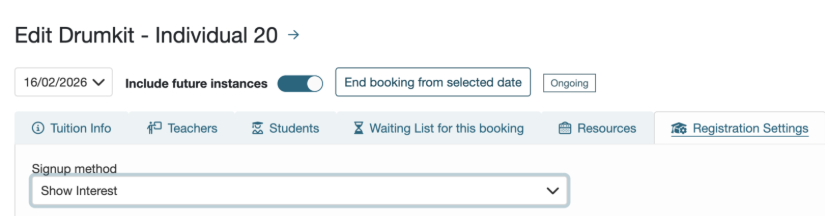
- To enable, select “Show interest” as the sign-up method for that booking
Managing sign-ups (SuperUser)
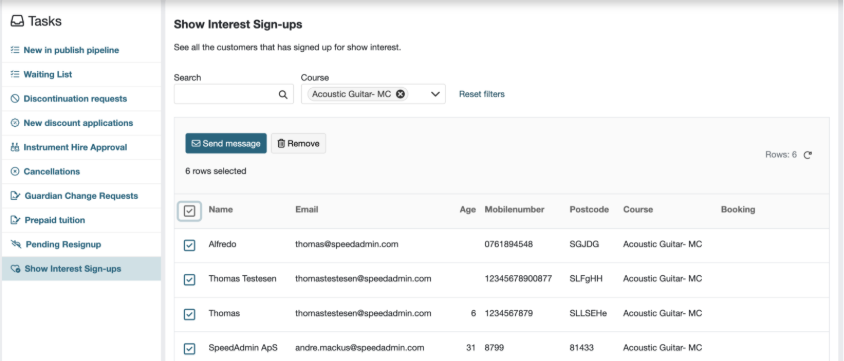
SuperUser now have access to “Show interest Sign-ups”, where it’s possible to:
- filter sign-ups by course
- send messages to selected people
- remove people from the list
Emails & unsubscribe
Parents receive a confirmation email when they sign up, including an Unsubscribe link.
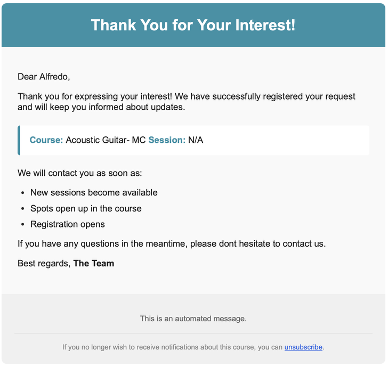
It is currently not possible for SuperUser to edit this email template.
How: Automatically available for activation by SuperUser in Settings-> Registration
Unmarked Attendance -Notifty teachers about unmarked attendance.
Teachers can now receive a notification email when attendance have not been marked.
Email template can be edited under Settings -> Communication -> Email and SMS templates -> Automatic Templates.
How: Feature needs to be activated by support (F_UNMARKED_ATTENDANCE_EMAIL_TO_TEACHER_JOB) – hereafter on Settings-> Booking -> Unmarked Attendance Email Setting
UX Improvements
Disabled checkbox replaced with explanatory text
When the “Include in worktime” option is locked and cannot be changed, we now show explanatory text instead of a disabled checkbox.
Additionally, an Alert on this page was unexpectedly displayed full width, even though Alerts are normally not rendered this way. This specific Alert has been adjusted. If more Alerts appear with the same issue, the component itself should be updated.
Fixed: Grid selection when creating a Study Planner group
When creating a Study Planner group, rows that should be preselected were not shown as selected when opening the page.
This has been fixed, and preselected rows are now correctly displayed as selected.
App version 1.0.29
More secure and easier login
It is now possible to log in using:
- Face ID
- Touch ID
- Passcode
More stable login and logout experience
When logging out and back in, the app now behaves correctly:
- The correct user is always shown
- Menus and tabs adapt correctly to your role
Media – now in the app
Media is now available directly in the app, making it easy to access and upload content.
Improved stability
An issue with marking attendance has been fixed, making the function more reliable.
Release 21.01.26
See other active waitinglist spots for students
SuperUser: SuperUsers working with the Waiting List can now view a student’s complete waiting list overview and full lesson history by clicking “>” (speedadmin.dk/play/waitinglist).
How: Available automatically. No additional rights or settings required.
Accept waitinglist re-registration on behalf of users
SuperUser: SuperUser or user with rights can now accept waiting list renewals on behalf of the user.
A new “Accept on behalf of user” button has been added to the waiting list renewal page. Bulk accept is also supported.
How: Available automatically. No additional rights or settings required.
Improved Room Overview
SuperUser: SuperUsers can now switch between day and week view in the room overview. It is also possible to select multiple locations or rooms from different locations in the same view.
How: Automatically enabled – no activation required.
Guardian “My Profile” + Invite another guardian to student
Parents: Guardians now have access to a My Profile page (via their name in the top-right corner), where they can invite an additional guardian to be linked to a student.
How: Automatically enabled – no activation required
Teacher Employment Type
SuperUser: “Teacher Employment Type” can now be defined in Settings - Salary
How: Right needed to access: “Manage salary type”
Overview of double profiles in SpeedAdmin Play!
SuperUser: An overview of potential duplicate profiles is now available in SpeedAdmin Play!. Profile merging is currently handled by SpeedAdmin Support—please contact us if profiles need to be merged. The list can be accessed via Settings → Users.
How: Automatically enabled – no activation required.
Text editor in notes
SuperUser / Teacher: All note components now support a rich text editor, allowing bold and italic text, numbered and bulleted lists, and text formatting.
How: Automatically enabled – no activation required.
Print schedule to PDF
Teacher: A pdf icon has been added to the schedule (schedule mode only). The schedule is captured and generated as a PDF in the chosen view (day, week, workweek, month).
How: Automatically enabled – no activation required.
Manage locked users in SpeedAdmin Play!
SuperUser: According to the password policy, a user may be locked after too many failed login attempts. Locked users are now indicated by a warning icon in search grids and can be unlocked from the user profile via the three-dot menu.
How: Right needed R\_PERSONAL\_DETAILS\_WRITE
Notes on manual payments
SuperUser: A note field has been added when creating manual payments on the payer profile. Notes are visible in the transaction grid.
How: Available automatically. No additional rights required.
Links as media items in teacher media library
Teacher: Links can now be added as media items. YouTube and Vimeo links are embedded as videos, others are shown as links. Media links can be used in StudyPlanner posts.
How: Available automatically. No additional rights required.
Reimbursement in SpeedAdmin Play!
SuperUser: The reimbursement functionality is now released and available in SpeedAdmin Play!.
It can be found under Finance and is automatically activated.
Before it can be used, a set of basic settings must be configured.
Configuration options include:
- Reimbursement based on a guaranteed number of lessons, or
- Reimbursement based on a tolerance threshold for cancellations before reimbursement applies
- Reimbursement calculated within a teaching period or a custom time frame
Calculation methods:
- A fixed price per lesson, or
- A calculated amount, where the paid amount is distributed across the number of lessons
Once configured, the reimbursement functionality can be used according to the selected model.
How: The F_Reimbursement feature must be enabled, and the user must have the CAN_MANAGE_FINANCE_SETUP permission.
My colleague overview for teachers
Teachers: Teachers can now see an overview of colleagues and, if allowed, view their timetables and send messages.
How: Requires rights:
- R_ACCESS_MY_COLLEAGUES to see menu point
- R_CAN_SEE_OTHER_TEACHERS_SCHEDULE – to view other teachers schedule
- View – SAP – Teacher personal details – to see phone and email
UX Improvements – Overview
- Faster grid navigation
Improved pagination lets users jump directly to the first or last page.
- Quicker access to profiles
Names in the attendance overview are now clickable and open the relevant profile.
- Clearer error messages
Gray error screens are replaced with readable messages shown as modals or toasts.
- More visible validation errors
Input errors are now clearly highlighted with red text and red field borders.
Release 15.12.25
Bulk Handling
SuperUser: It is now possible to edit multiple bookings at once in the Schedule.
Users with the right permissions can select several individual bookings or use the new “select full day” checkbox. Then choose Edit and do one of the following:
- Change date - Move all selected bookings to a new date.
(You can only edit one day at a time and can send a message in the same flow.)
- Add or remove Location
Change the location (remove or add) for all selected bookings – either:- only for the selected date, or
- for the selected date and all future bookings in the series.
- Add or remove Teacher
Change the teacher (remove or add) for all selected bookings – either:- only for the selected date, or
- for the selected date and all future bookings in the series.
- Change Booking Owner
Set a new booking owner for all selected bookings.
(Not date dependent – each booking just has one owner at a time
- Move bookings in time
Move all selected bookings forward or backwards in minutes.
(You can only edit one day at a time)
- Cancel selected bookings
Same cancel functionality as before – now just available in bulk.
Please note: What you can do in bulk still depends on your general rights to edit bookings.
How: The user must be assigned the right “Right to change bookings in bulk” – otherwise the Bulk “Edit” button will not appear – only “Select” button. All standard Superuser right groups will be assigned with this right. It will also be needed with either 'MANAGE_ALL_BOOKINGS' or 'CREATE_EDIT_LESSON'
New flow for creating bookings
SuperUser/Teacher: It is now easier to book students from the waiting list directly into the timetable. When a student on a waiting list is assigned to a teacher, you can:
- Drag the student into the timetable (Planning Mode)
- Course, Fee and Venue are automatically prefilled from the waiting list
You then only need to complete two short steps:
1. Booking info
- Confirm start date and start time
- Length is fixed from the fee type
- Change Venue and/or add a Room
2. Settings
- Option to override fee (if you have the rights)
- Choose notification type:
- Book directly – no notification sent
- Custom message – booking is created and then directed to the message sender.
- Booking offer with parent confirmation – available if the Accept Booking feature is enabled
- If the student is added to an existing booking and has multiple waiting list entries for the same course, the system will warn you and offer to remove extra waiting list entries.
You can also use this flow when you edit an existing booking and choose “Add student from waiting list”.
Bookings created with this new flow will appear in the Publish Pipeline with a new status: “Not configured”.
How: This functionality will be automatically activated but can be deactivated through Support.
Feature flag: F_NEW_ADD_STUDENT_BOOKING_FLOW.
Prepaid Feature
SuperUser/Parents/Teacher: This release introduces the Prepaid Tuition feature – a flexible teaching model where a fixed bundle of lesson minutes is paid in one up-front fee. Lessons are then scheduled on an ongoing basis as long as there are minutes left on the account. All parties can at any time see how many minutes have been used, what remains, and how the prepaid balance is being spent.
How: Feature and rights required for visibility and management – activation by Support.
(Feature: (ID: 267) F_PREPAID_TUITION Right: (ID: 790) MANAGE_PREPAID_TUITION)
“My Students” – Teacher Overview
SuperUser/Teacher: It is now possible for teachers to see an overview of their students.
- All users marked as Teacher (IsTeacher) get a new menu item: “My students”
- In “My students”, the teacher can see:
- All active students or upcoming students within the chosen Teaching period (school year)
- All students on the waiting list assigned to the teacher (can be included or excluded)
- Details will depend on rights, but will show:
- Name of student (link to profile)
- Age/yeargroup
- Sign-up course with the teacher (link to booking)
- Next Booking info
- Link to StudyPlanner (booking)
- Opening up the chevron will display students other activities.
SuperUsers can also open “My students” for a specific teacher when they administer that teacher, and see the same overview:
How: Automatically enabled – no activation required. If previously teacher have seen student info through Resources, this is deactivated.
Parents can record absense directly in the app
Parents: Parents are now able to record through the App that a student will be absent from a specific booking. Teacher will receive a notification, and the student attendance will be update with “Student absence”
How: The feature needs to be activated by the school on Settings – Booking – Attendance Reasons
Release 03.11.25
Accept Booking Offer
SuperUser: It is now possible to include a confirmation question to the guardianwhen sending booking offers. The student will be tentatively booked, and the guardian will receive an email asking them to confirm whether the offered day and time work before the booking becomes final.
When this feature is activated, the scheduling process works as follows:
- The student is tentatively booked, but no invoice is created yet.
- An email is sent to the payer with a link to a landing page, where they can accept or decline the offer.
- A due date is automatically set for the guardian’s reply. If no response is received by this date, the offer will be cancelled, and the student will be automatically removed from the waiting list.
- When guardians accept the booking offer the student is finally booked and charges generated
How: Requires activation of the feature by support
SuperUser Landingpages
SuperUser: SuperUser will notice several new enhancements on their landing page, providing better insights and control:
- A start and end date filter has been added to the Teachers without attendance section.
- New graphs now display Direct bookings and New students on the waiting list.
- A new overview, New students (last 30 days), has been added — with filters to show either Direct bookings, Waiting list, or Waiting list (existing students).
How: Automatically enabled – no activation required
Billboards
All: Users with access to the StudyPlanner feature will now see the first implementation of Billboards — a shared communication space within the StudyPlanner environment.
In the Billboard section it is possible to share news or important information for internal use.
All posts are displayed for all users.
How: Automatically enabled, when StudyPlanner Feature is on.
New Course Catalogue Design
Parents: The first part of the new Course Catalogue design has been implemented — offering a more intuitive and engaging browsing experience for parents.
Users will now experience:
- Improved usability – clearer structure, smoother navigation, and quicker access to relevant courses.
- Responsive design – optimized for a seamless experience across desktop, tablet, and mobile.
- Enhanced filtering and search – new and improved filters make it easier to find the right courses, even within large catalogues.
How: Requires activation of the feature by Support (F_NEW_COURSE_CATALOGUE)
Login Page Update
All: All Users on the SpeedAdmin login page will notice a new eye icon next to the password field. By clicking the icon, users can toggle password visibility — making it easier to check for typing errors before logging in.
How: Automatically enabled – no activation required
Release 13.10.25
Create and manage “Ad hoc StudyPlanner”
In databases where the StudyPlanner feature are turned on, all users will experience a new “Community” tab:

The Community page will give access to both:
• “Billboard” - Any user in database will see all posts.
• “Ad hoc StudyPlanner” - users can be assigned to a StudyPlanner not linked to a booking and across user types.
Those with rights can Ad hoc StudyPlanners and create posts.
How: Automatic if Feature has been activated by SpeedAdmin Support. (F_STUDYPLANNER_PLAY)
Right: CUSTOM_STUDYPLANNER + R_CAN_MANAGE_ALL_STUDYPLANNERGROUPS
Possibility to add statistic pr. timeslot or for the whole booking
Users with rights to edit bookings can now add Statistics – information about anonymous students, either for an entire booking series or for a specific instance.
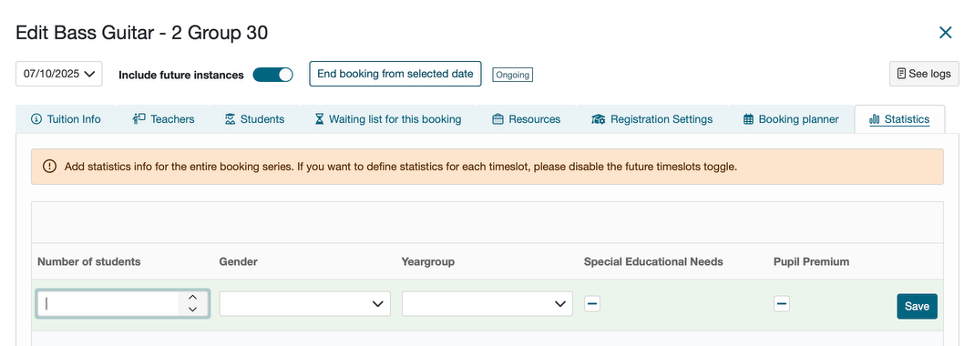
Information added can be reported on based on Lists Content “Booking data (Play)”.
How: Functionality is activated by SpeedAdmin Support with a feature (F_BOOKING_STATISTICS)
Release 07.10.2025
Functionality to copy charge rate.
SuperUser: SuperUsers can now copy charge rates between teaching periods (academic years) - cutting setup time and reducing errors.
Where it works:
1. Settings → (Finance) Rates
Create new rates with few clicks based on rates from the previous teaching period.
2. Settings → (Finance) Fees
Assign the all new rates for a new teaching period to each fee:
- keep the same price / price per lesson, or
- quickly input updated prices.
How: Automatically enabled – no activation required.
Lesson Change Requests
Guardians can request lesson changes directly in the system using predefined request types set by Superusers.
SuperUser:
- Define options: Activate the feature and create a set of Change Request Types (e.g., Change lesson length, Change teacher) with short descriptions.
- Process requests: Incoming requests appear in Tasks and can be handled from the student profile. Mark each request as Approved or Declined.
Parents/Guardians:
- Submit change requests from the guardian/parent view by choosing one of the options provided. This is done per Activity Card under Options
How: Feature can be activated by the Superuser in Settings → (Booking) Guardian change request
Instrument Hire Contract
You can now use the Document Generator to create templates for instrument hire contracts.
SuperUser:
- Multiple templates: Set up several hire-contract templates with merge fields.
- Easy selection: When an instrument hire is assigned, choose the relevant contract template and the student/guardian/school/instrument details will auto-merge.
- Send or save: Insert the generated contract into a new email to the student/guardian/school or download the file.
How: Template upload is currently handled by SpeedAdmin Support. Please contact Support to add or update your hire-contract templates.
Supplement to Release 17.09.25
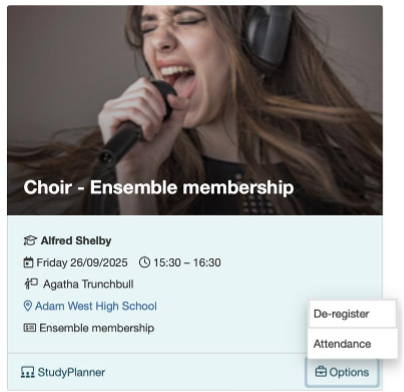
Placement of the “Attendance” button has changed
With the launch of StudyPlanner, our design team has placed the “Attendance” and “De-register" together so you will now find it under the “Options” menu in the lower right corner of the Activity Card (parent/student view).
This update only changes the view – the functionality remains exactly the same.
We will continue improving the parent/student view to make their experience more intuitive and user-friendly, but we wanted to make sure you were informed of this change right away.
Please note that parents/students will not see the “StudyPlanner” on the Activity Card until the functionality has been enabled in your database. To ensure a smooth roll-out, we will activate it one database at a time in close cooperation with you.
Release 17.09.25
IMPORTANT – New PlayID implemented on all resources
Until now, all resources (Students, Guardians, Teachers, Users, Schools, Instruments, Courses) have been identified by the old LegacyID. These IDs were not unique, meaning that the same number could appear on different resource types, which made searching and handling more complicated.
With the introduction of the new PlayID, every resource will now have its own unique number. This makes it much easier to search, manage, and clearly identify resources across the system.
What this means for you:
• Most existing resources will receive a new PlayID.
• For the first month, you can search by both LegacyID and PlayID in the SuperSearcher. After that, only PlayID will be available.
• In Lists, you can use both LegacyID and PlayID, but new ressources will not be assigned a LegacyID.
👉 If you are currently using or referring to StudentID (or similar IDs), please note that these references will now point to the new PlayID.
Inactive/Active Teachers in Play!
SuperUser: SuperUsers with access to teacher profiles cannow activate or inactivate teachers in Play!.
When a teacher is inactivated, the login access will be removed. Furthermore theteacher cannot be added to bookings, schedules, or other activities.
How: Automatically enabled – no activation required.
De-registration reasons now in Play!
SuperUser: SuperUsers can now manage de-registration reasons directly in Play! This is useful for reporting and statistics.
Where to find: Settings → Registration → De-registration info → Discontinue reasons
How: Automatically enabled – no activation required.
Discount Scheme Priority Order on Invoices
SuperUser: When using discount priority, the order of lines on the Charges and Finance tabs is now displayed according to how discounts are calculated. Previously, the order could be misleading.
How: Automatically enabled – no activation required.
2FA – Two factor authentification
All User: In addition to the standard username and password, users will be required to enter a one-time code before access is granted.
The code is automatically sent via SMS.
How: The feature requires activation after anadd-on agreement (extra costs apply). To enable 2FA, please contact sales@speedadmin.com.
Direct Debit / Recurring Payments
SuperUser: Customers using Stripe integration can now setup recurring or direct debit payments through SpeedAdmin and Stripe. This is being tested in live environment and will be rolled out stepwise to all interested Play! databases.
Adjustment:The “Recurring payment retrieval state” will no longer be displayed for schools that do not have the recurring payment feature enabled.
How: Will be rolled out per customer according to rollout plan – no action required.
StudyPlanner
SuperUser / Teacher / Parents: The first version of StudyPlanner is live. It includes two parts:
· Media: where teachers can upload their teaching material
· StudyPlanners:where teachers can create post and messages for their students
Students and parents can access their StudyPlanners through the web version (mobile app will follow). If enabled by the teacher, students and parents can also comment on posts.
How: Will be rolled out per customer according torollout plan, which will be shared at the launch webinar on 29.09.25
Overallschedule improvements with focus on make-up lessons
SuperUser / Teacher: Several updates have been made to make handling rescheduled and make-up lessons smoother and more reliable:
- When rescheduling, any related unplanned bookings are now automatically removed from the left side.
- The “Anomalies” view will no longer appear when working with a single instance.
- Rescheduled lessons can now be placed freely in the schedule.
- Undoing a rescheduling now correctly updates the schedule.
- Cancelled lessons can no longer be moved.
- Improved warnings when dragging a timeslot across other timeslots within the same booking.
How: Automatically enabled – no activation required.
Overall UX Improvements
SuperUser / Teacher / Parents:
· The close icon (X) in multi-select chips is now vertically centered.
· Headline alignment in the alert component has been improved.
How: Automatically enabled – no activation required
Release 11.08.25
Add notes when crediting an invoice
SuperUser: It is now possible to add a note when creating a Credit Nota — e.g. to explain the reason for the credit. This note will be visible across all relevant views:
- The accounting overview
- The user profile
- The credited invoice itself
Additionally, an issue related to translation prefixes on invoices has been resolved.
How: Automatically enabled – no activation required.
Copy base course
SuperUser: SuperUsers can now copy base courses, including the Fees assigned to the course. This makes it much more efficient to create multiple courses by copying a base course and adjusting small details (e.g., name, picture).
How: Automatically enabled – no activation required.
Reload grid when making an adjustment (Bugfix)
SuperUser: When making an adjustment on a payer’s profile page, the grid now reloads automatically so that changes are visible immediately. Additionally, a link between credit and credited items has been added.
How: Automatically enabled – no activation required.
Separate invoice numbers for generic orders
SuperUser: Enables multiple configurations for invoice numbers and related settings.
How: Must be configured by SpeedAdmin Support.
Rules for rolling back invoices
SuperUser: Applies only if there is a requirement to avoid gaps between invoice numbers. This is not relevant for all schools, as some use an external system to manage invoice numbers.
How: Must be activated by SpeedAdmin Support
Auto-post credit notes
SuperUser: When creating a new credit note, it is now posted instantly instead of being added as an order, and it is automatically assigned to a specific credit batch.
How: Automatically enabled – no activation required.
Lesson-Ensemble discount independent of Fee/Rate “Trigger Discount”
SuperUser: When assigning a Lesson–Ensemble discount percentage through a course fee, the discount is now applied to all eligible students, regardless of whether the fee setting is configured to trigger a discount.
How: Automatically enabled – no activation required.
UX Improvements
Various visual and usability enhancements:
· Adjusted size of the Teaching Plan Counts modal
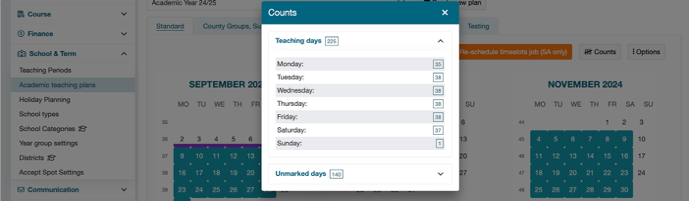
· Added a new empty-state image to the Applications & Services pages
· Improved size responsiveness in Schedule – Planning mode (a Firefox-specific fix)
How: Automatically enabled – no activation required.
Release 21.07.25
Mark Fee as subsidized
SuperUser: Fees can now be marked as subsidized.
How: Requires activation of the feature by Support.
Rule-based adjustments
SuperUser: With the new feature Rule-based Adjustments, individual fee adjustments can now be automatically calculated and applied based on predefined rules.
It is now possible to configure your own adjustment rules – e.g. discounts based on postcode or surcharges for adults.
How: Requires activation of the feature by Support.
Instrument Hire Improvements
SuperUser: Several improvements has be done.
- The Hire tab is now placed first on the instrument page.
- Update and delete options have been added for instrument hires.
- Deleting an instrument now redirects users to the search page instead of showing a “Page Not Found” error.
How: Automatically enabled – no activation required.
Clearer Choice in Booking Modals
Parents/students: A new “Decide later” button has been added to the booking confirmation modal (e.g., for re-registration or waiting list offers).
Previously, users who wanted to postpone their decision had to click the small X in the corner – which was unclear to many. This often caused confusion or hesitation. The new button provides a clearly labeled, intuitive way to close the modal without saving any changes – doing exactly what the X did, but with much greater clarity..
How: Automatically enabled – no activation required.
Better Booking Info: Hide Irrelevant Details
Parents: We’ve improved the logic for what is shown in confirmation email for course bookings:
- Lesson count will now be hidden if the value is 0.
- Start and end dates are no longer shown for bookings from the waiting list.
- For direct bookings only the start date is shown – the end date is hidden if ongoing.
- Seconds are no longer displayed in time values – to keep things clean and meaningful.
How: Automatically enabled – no activation required.
Hide Schools in Course Catalog
SuperUser: SuperUsers can now ensure that schools with no published content in the course catalogue are hidden from public view. This helps keep the catalogue cleaner and more relevant for users.
How: A new setting has been added under Settings → Registration → Registration Settings. When enabled, schools without any published courses will not be shown in the course catalogue. This setting can be toggled as needed.
Change Fee on Student Profile
SuperUser: SuperUsers can now change the fee for an individual sign-up directly from the student’s activity overview. A new button has been added to the grid for easier access.
How: Automatically enabled – no activation required.
New Filters and Clearer Course Info in Grids
SuperUser: The course school is now shown in both the Booking Grid and the Cancellation Grid for improved clarity across organisations. The Cancellation Grid has been extended with new filters, making it possible to filter cancellations by date range.
How: Automatically enabled – no activation required.
Overall UX Improvements
SuperUser/Teacher
· Primary Buttons:
On the booking edit page, all previously green buttons have been replaced with solid primary buttons. Horizontal spacing between interface elements has also been adjusted for better readability.
· Sort Indicator on Hover:
When hovering over sortable table headers, a sort icon now appears (if the column isn’t already sorted). The icon dynamically updates based on current sort direction, and text color changes to black on hover — making the sorting functionality more intuitive and discoverable.
How: Automatically enabled – no activation required.
Release 01.07.25
Overall UX Improvements
Parents - Start Page: If a parent has created an account without any linked students or activities, a clear message is now shown on the start page, guiding them on how to complete a registration.
Superuser – Settings: We’ve improved the size and layout of modal windows that appear when creating new settings, making them easier to view and navigate.
Superuser / Teacher – Schedule Improvements:
· Scrollbars now appear when needed – both in the booking modal (on hover) and in the left-hand sections.
· You can now collapse sections on the left (e.g. Unplanned bookings and Unplanned waiting list students).
· The Teaching Period is now centered within the “Booking Planner” tab.
· Tabs are visually faded when inactive (e.g. while editing a single booking instance).
How: Automatically enabled – no activation required.
New option in Discount Schemes
SuperUsers – You can now define per discount scheme whether automatic discounts (e.g. sibling, multi-course) are applied before or after the scheme discount.
How: Settings > Fees > Manage Discount (Discount tab)